In the world of mobile app development, displaying images is a common task. However, when dealing with images, it can quickly become tough to display them fast enough while not blocking the UI thread. Luckily Apple have thought of this when creating SwiftUI and they have created a powerful solution called AsyncImage.
In this blog post, we’ll explore how AsyncImage simplifies the process of loading remote images in SwiftUI, making it easier and more efficient for developers — the easier it is, the happier the developer.
Basic example with SwiftUI AsyncImage
Using AsyncImage is straightforward. Here’s an example of how to use AsyncImage in SwiftUI:
AsyncImage(url: URL(string: "https://softwareanders.com/wp-content/uploads/2023/06/whosagooddog-scaled.jpg"))The result:

As you can see we get an image of a close-up by a dog. But the image is actually not a close-up — so let’s go to the next section and scale it so it fits in our app.
SwiftUI asyncimage size
Let’s make the image of the cute dog fit into our app. To our AsyncImage we are using the parameter called “url” and now we will use the next one called “content”.
Inside the content, we simply have our image and we can do whatever we want, like resizing it.
AsyncImage(url: URL(string: "https://softwareanders.com/wp-content/uploads/2023/06/whosagooddog-scaled.jpg"),
                   content: { state in
            state.image?
                .resizable()
                .scaledToFit()
                .frame(width: 300, height: 250)
   })
The result:

As you can see we added the following modifiers to our image: resizable(), scaledToFit(), and frame().
Keep in mind when working with images you want to get an image that is not too large in size and ideally, you want to get an image that pretty much fits — but it’s a good idea to put a frame on it, so if the image changes your app won’t break.
SwiftUI asyncimage placeholder
Sometimes the image takes a bit to load and in the meantime, you properly want to show some kind of placeholder — it can be another image, a progressview or something else.
In the following example, I will show you how you can create a progressview as a placeholder:
AsyncImage(url: URL(string: "https://softwareanders.com/wp-content/uploads/2023/06/whosagooddog-scaled.jpg"),
                   content: { image in

            image
                .resizable()
                .scaledToFit()
                        .frame(width: 300, height: 250)
        },
                   placeholder: {
                        ProgressView()
        })
    }
Notice we changed the image.image? to image and added the placeholder parameter.
You can replace the ProgressView() with whatever you like.
Asyncimage error handling in SwiftUI
If you use the placeholder as shown above you will see a spinner when the app is trying to fetch an image and if it fails it will also show the spinner but perhaps you want to show another image if it fails.
We can easily decide what we want to do because SwiftUI provides us with three states: empty, success and failure.
The empty state is while the app is fetching the image and the success state is when there is an image to display and failure (you guessed it) is when the app did not fetch the image.
AsyncImage(url: URL(string: "https://softwareanders.com/wp-content/uploads/2023/06/whosagooddog-scaled.jpg"),
                   content: { state in
            switch state {
            case .empty:
                ProgressView()
            case .success(let image):
                image
                    .resizable()
                    .scaledToFit()
                    .frame(width: 300, height: 250)
            case .failure(:
                Image(systemName: "exclamationmark.circle.fill")
                    .resizable()
                    .scaledToFit()
                    .frame(width: 100)
                    .foregroundColor(Color.red)
            @unknown default:
                EmptyView()
            }

        })
If the fetching the image fails it will show the following:

Asyncimage with transaction
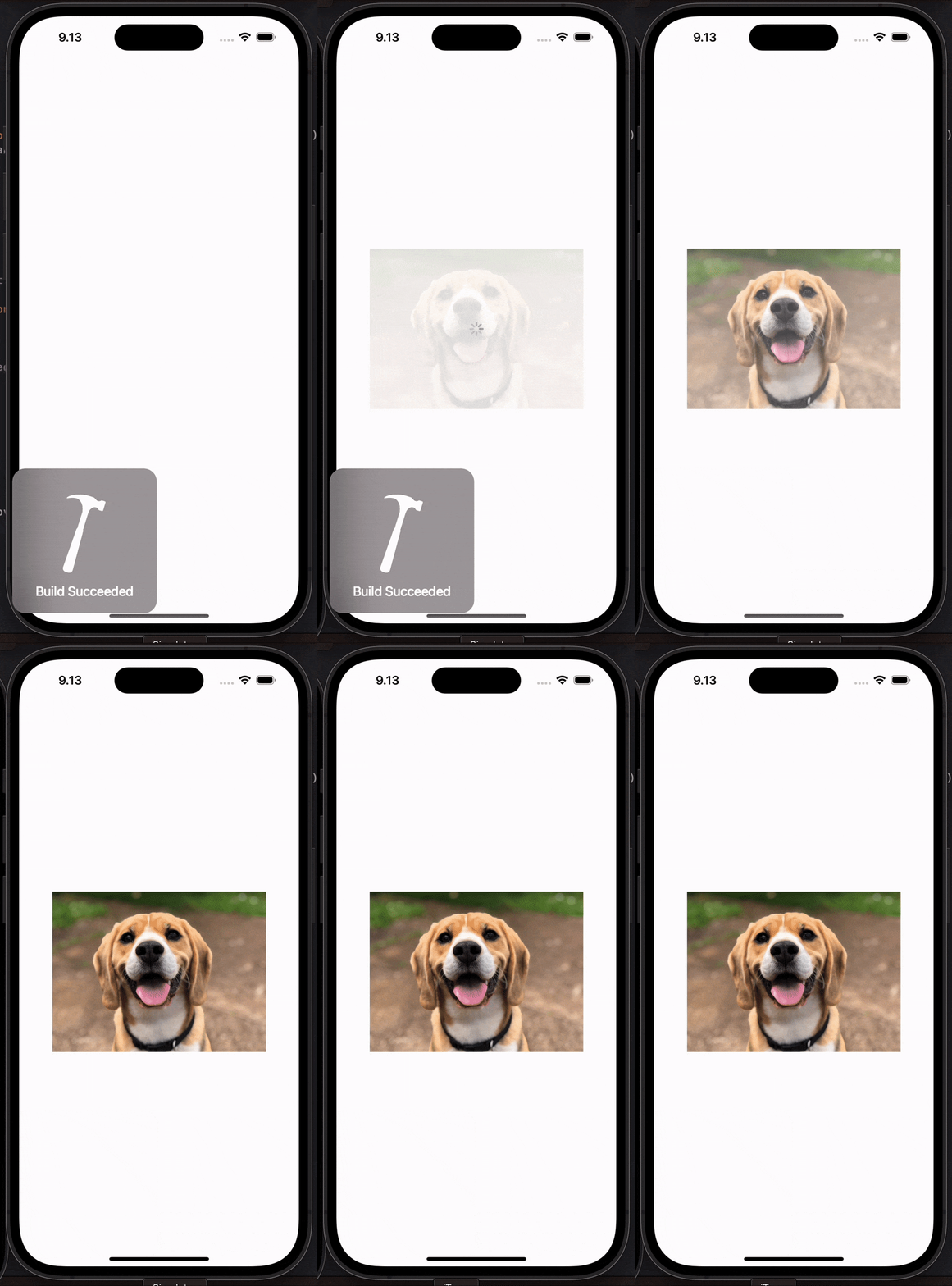
When you are loading images async into your app the transitions between loading and showing the images can seem a bit hard. So to smooth the transitions we can use the transaction mechanism and for example use the .easeIn modifier.
AsyncImage(url: URL(string: "https://softwareanders.com/wp-content/uploads/2023/06/whosagooddog-scaled.jpg"),
                   transaction: Transaction(animation: .easeIn(duration: 1.0)),
                   content: { state in
            switch state {
            case .empty:
                ProgressView()
            case .success(let image):
                image
                    .resizable()
                    .scaledToFit()
                    .frame(width: 300, height: 250)
            case .failure:
                Image(systemName: "exclamationmark.circle.fill")
                    .resizable()
                    .scaledToFit()
                    .frame(width: 100)
                    .foregroundColor(Color.red)

            @unknown default:
                EmptyView()
            }

        })
The result:
Conclusion
SwiftUI’s AsyncImage simplifies loading remote images in iOS and macOS apps. By handling asynchronous image loading and error handling, AsyncImage allows developers to focus on building delightful user interfaces rather than dealing with the intricacies of network requests. Incorporating AsyncImage in your SwiftUI projects will save you time and effort, resulting in more robust and efficient image-loading experiences for your users.